Administrator Registration
Administrator registration is the first step to using the ProcureSwift application. During this process, the administrator creates an organization in the system, verifies their email address, and gains access to the platform. Once registered, the administrator can invite additional users and manage system settings.
Accessing the Registration Form
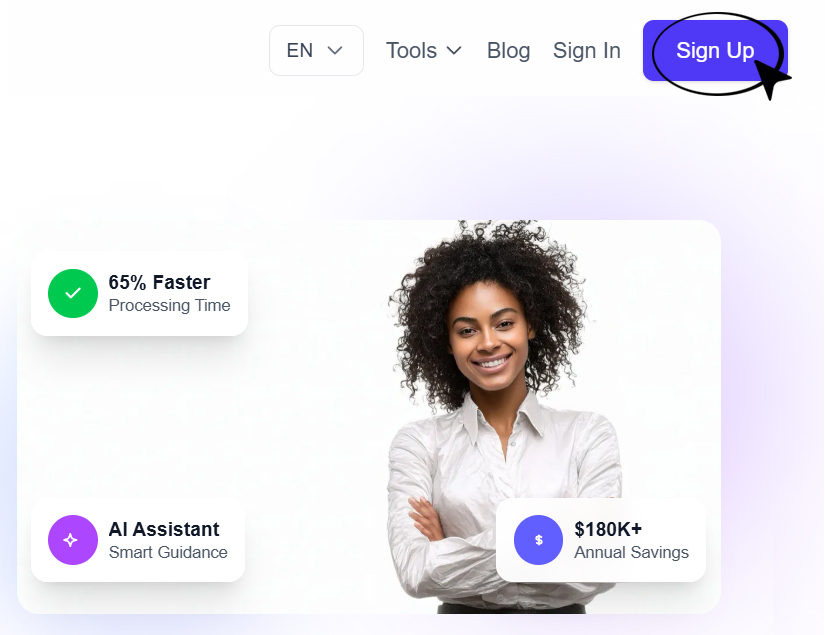
- Open the ProcureSwift website.
- In the top-right corner, click the Sign Up button.
- You will be redirected to the registration form for creating a new organization.
Creating an Organization
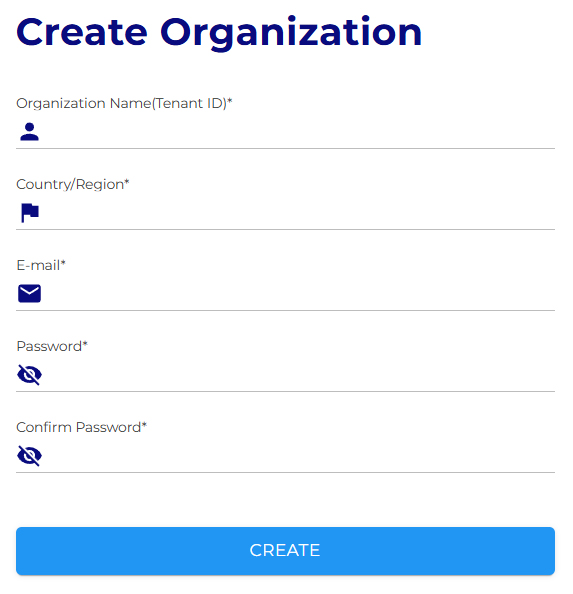
On the Create Organization screen, fill in the following information:
Organization Name (Tenant ID) – the name of your organization, used as the organization identifier during login.
Organization Creation Confirmation
After successfully submitting the registration form, the Organization Successfully Created screen is displayed. This screen contains the following information:
- Tenant ID – the organization identifier
- Admin Email – the administrator’s email address
An informational message is also displayed indicating that the organization is being set up. This process typically takes 1–5 minutes.
Email Address Verification
- Check your email inbox.
- Open the message with the subject Welcome to ProcureSwift.
- Click the Confirm Registration button.
Without confirming the email address, it is not possible to log in to the application.
Signing In to the Application
After successfully verifying your email address:
- Click the Log In button or navigate to the login page.
- Enter the following information:
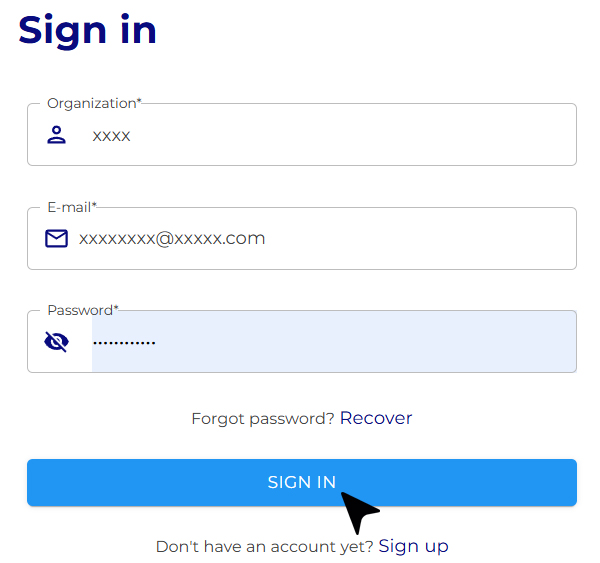
After logging in, you will be redirected to the ProcureSwift dashboard. The administrator has full access to application settings, user and role management, and the basic configuration of the organization.