Tenant Settings
The Tenant settings section allows administrators to manage settings that apply across the whole organization — from user registration rules through security to integrations. The settings are split into several collapsible sections; after editing any of them, save your changes with the Save Changes button at the bottom of the page.
- The administrator logs in to the ProcureSwift application.
- In the main menu, navigates to Settings.
- Selects Tenant settings.
Email Security Settings
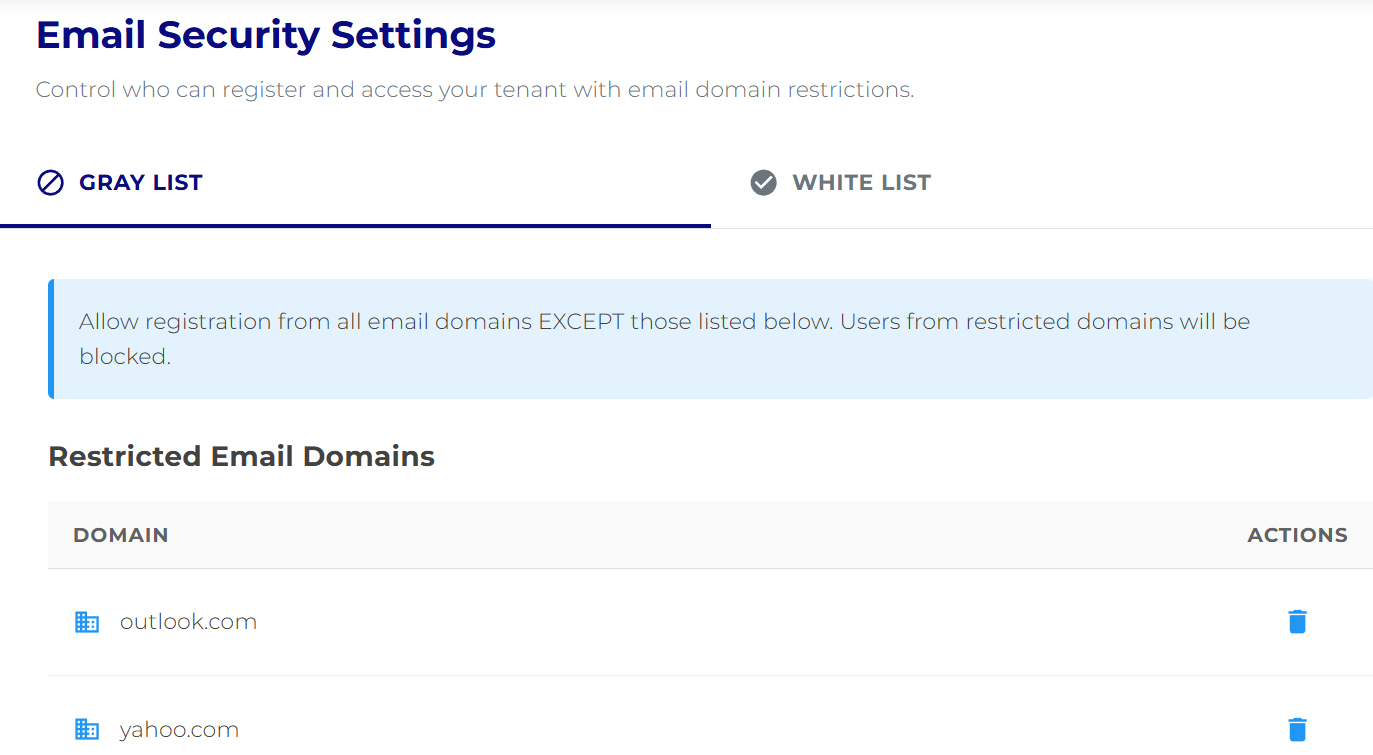
This section lets you define user registration rules based on email domains — that is, which domains are allowed or blocked during registration. If a user cannot register because of a restricted email domain, the administrator must update the settings here.
The Email Security Settings screen offers two modes:
Gray List (Blocked Domains)
Gray List mode allows registration from all email domains except those that are explicitly blocked.
- Enter the domain name in the Domain to restrict field (e.g., gmail.com).
- Click Restrict Domain.
- Click Save Changes.
White List (Allowed Domains)
White List mode is a stricter security setting. Registration is allowed only from domains that are explicitly permitted.
Characteristics:
- all other domains are automatically blocked
- suitable for organizations with clearly defined corporate email domains
Adding an allowed domain:
- Enter the domain name in the Domain to allow field (e.g., yourcompany.com).
- Click Allow Domain.
- Click Save Changes.
Two-Factor Authentication
In this section the administrator can require two-factor authentication (2FA) for the organization's users.
- Require two-factor authentication for all users – when enabled, all users must set up two-factor authentication using an authenticator app (e.g. Google Authenticator, Microsoft Authenticator) before they can access the system.
- Exempt suppliers from mandatory two-factor authentication – optionally, suppliers can be excluded from mandatory 2FA. Suppliers can still enable 2FA voluntarily, but it will not be required for them.
Service Acceptance — Segregation of Duties
This setting controls who can finalise a service acceptance on the Manual Service Acceptance page. It does not affect Three-Way Match or RFQ flows.
- STRICT – blocks any acceptance whose evaluator is the same user as the approver.
- FLEXIBLE – allows such an acceptance after explicit confirmation and flags the record in the audit log with
same_user_approval = true.
Time Zone
The organization's default time zone is used to display time values to users who have not chosen their own.
- Time values are stored in UTC; the selected time zone only changes how they are displayed.
- If you leave the Tenant default time zone field empty, UTC is used.
Integrations — Xero
This section lets you connect the organization to Xero for accounting sync (contacts, invoices, purchase orders, and payment statuses). If the Xero integration is not enabled for your organization, this section may not be shown.
Save Changes
After editing any section, click Save Changes at the bottom of the page. The button is active only when there are unsaved changes.