Purchase Requisitions
A Purchase Requisition is used to officially record the need to purchase goods or services in the ProcureSwift system. It represents the first step of the procurement process and is subject to approval based on predefined rules.
Viewing the List of Purchase Requisitions
- In the main menu, go to Purchasing.
- Select Purchase Requisitions.
A list of all created purchase requisitions will be displayed, including their status, budget, currency, and creation date.
Creating a New Purchase Requisition
- In the Purchase Requisitions section, click Create.
- The Purchase Requisition Sheet form will open.
Basic Purchase Requisition Information
At the top of the Purchase Requisition Sheet, the user fills in the basic information about the purchase requisition, such as the request name, linked project, budget, dates, currency, and delivery location. These details define the context of the purchase and determine which project and budget the request will be associated with.
Procurement Method
In the Procurement Method section, the appropriate purchasing method must be selected based on the type of purchase:
-
Simple Procurement
– used for simple and direct purchases where no comparison of multiple offers is required.
-
RFQ (Request for Quotation)
– used to request price quotations from multiple suppliers for standard products or services.
-
RFP (Request for Proposal)
– used for more complex purchases where not only price, but also the proposed solution, scope, and supplier’s added value are evaluated.
Description of the Items
In the Description of the Items section, the user adds individual items that are part of the purchase request.
To add a new item, click + Add Item and fill in all required fields, including:
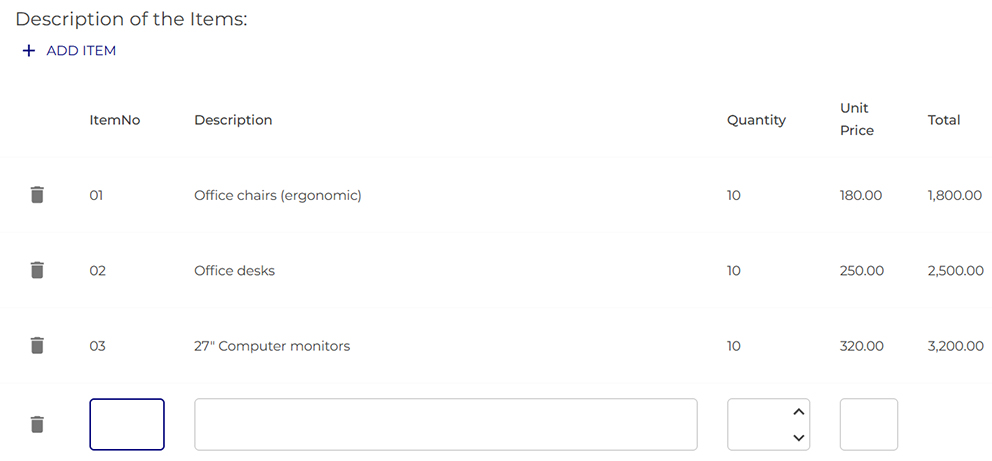
All fields must be completed!
If any field is left empty, the system will not allow the item to be added. An item can only be saved when all required values are provided.
The Total amount for each item is calculated automatically based on the quantity and unit price.
Supplier Selection
In the Select supplier for your request section, the user can:
- select a supplier from the list of existing suppliers,
- assign a specific supplier to the purchase requisition.
The selected supplier will be displayed in the requisition overview.
Approvals
In the Approvals section, the user:
- adds an approver by clicking Add Approval,
- selects the approver’s name,
- optionally enters an Additional comment.
Attachments
At the end of the form, documents related to the purchase requisition can be attached:
- a maximum of 5 files,
- a maximum file size of 5 MB per file,
- files can be uploaded either by selecting them or using drag & drop.
Saving the Requisition
After completing all required information, the user has two options:
- Save Draft – saves the requisition as a draft,
- Save and Send to Approval – saves the requisition and sends it into the approval workflow.